How to Streamline Your Design Workflow: 5 Practical Strategies (2025)
Save time, reduce revisions, and deliver exceptional design work consistently with these proven workflow optimization techniques.
Tutorials
Dec 11, 2025

Inefficient workflows waste time, drain creativity, and lead to costly revisions. The average designer loses 20-30% of their productive time to disorganization, unclear requirements, and repetitive tasks.
The solution? A streamlined design workflow that eliminates friction, automates repetition, and lets you focus on what matters—creating exceptional work.
This tutorial covers five actionable strategies to optimize your design process, whether you're a freelancer, in-house designer, or agency professional.
Set Clear Goals and Define Project Scope
Why Project Clarity Matters
The problem: 67% of design projects fail due to unclear requirements and scope creep. When you start designing without clear objectives, you risk:
Endless revision cycles
Missed deadlines
Client dissatisfaction
Burnout from rework
The solution: Invest 10-15% of project time upfront, defining crystal-clear goals and boundaries.
The Project Definition Framework
Step 1: Identify Business Objectives
Ask these critical questions before opening your design tool:
What problem are we solving?
The user can't find products quickly.
Conversion rate is below the industry average
The brand feels outdated compared to competitors
What does success look like?
20% increase in conversions
50% reduction in customer support tickets
Positive user feedback scores above 4.5/5
Who is the target audience?
Demographics (age, location, income)
Psychographics (values, interests, pain points)
Tech proficiency and device preferences
Step 2: Define Deliverables Precisely
Create a concrete list of what you'll deliver:
Be specific:
❌ "Design a website."
✅ "Design 5 responsive pages (Home, About, Services, Portfolio, Contact) for desktop (1440px), tablet (768px), and mobile (375px)."
Include formats:
Figma files with organized layers
Exported PNG assets at 1x and 2x resolution
Style guide PDF
Developer handoff notes
Set version limits:
2 rounds of revisions included
Additional revisions are billed at an hourly rate
Step 3: Establish Timeline and Milestones
Break the project into phases with clear deadlines:
Example timeline for website redesign:
Week 1: Research & Discovery
Stakeholder interviews (Day 1-2)
Competitor analysis (Day 3)
User research synthesis (Day 4-5)
Week 2: Wireframes & Concept
Low-fidelity wireframes (Day 1-3)
Client feedback session (Day 4)
Revisions (Day 5)
Week 3-4: High-Fidelity Design
Homepage design (Week 3, Day 1-2)
Internal pages (Week 3, Day 3-5)
Client presentation (Week 4, Day 1)
Final revisions (Week 4, Day 2-3)
Week 5: Handoff & Documentation
Developer handoff (Day 1-2)
Style guide creation (Day 3-4)
Final QA (Day 5)
Step 4: Document Scope Boundaries
Clearly state what's NOT included to prevent scope creep:
Out of scope examples:
Custom illustrations (stock photos only)
Animation or motion design
Content writing or copyediting
Development/coding
Social media graphics
Email templates
Tools for Project Definition
Notion – Comprehensive project documentation
Miro – Collaborative brainstorming and mapping
Google Docs – Simple, shareable project briefs
Asana/Monday.com – Project management with timelines
Figjam – Visual project kickoff sessions
Project Brief Template
PROJECT NAME: [Client Name] Website Redesign

BUSINESS OBJECTIVES:
- Increase conversions by 25%
- Modernize brand perception
- Improve mobile experience

TARGET AUDIENCE:
- Age: 25-45
- Tech-savvy professionals
- Mobile-first users (70% mobile traffic)

DELIVERABLES:
- 5 responsive page designs
- Component library in Figma
- Style guide PDF
- Developer handoff notes

TIMELINE:
- Start: January 15, 2025
- Wireframes due: January 22
- Final designs: February 12
- Handoff: February 19

REVISIONS: 2 rounds included

OUT OF SCOPE:
- Custom illustrations
- Content writing
- Email templates

2. Map Out and Visualize Your Workflow
Why Workflow Visualization Prevents Bottlenecks
Visualizing your process helps you:
Identify time-wasting steps
Spot bottlenecks before they happen
Communicate the process to clients and teammates
Standardize approach across projects
Result: 30-40% reduction in project delays and confusion.
The 5-Phase Design Workflow
Phase 1: Discovery & Research (10-15% of timeline)
Activities:
Stakeholder interviews
User research and personas
Competitor analysis
Content audit (existing projects)
Technical constraints review
Deliverables:
Research summary document
User personas
Competitive landscape analysis
Tools: Notion, Miro, Google Forms, Maze
Phase 2: Strategy & Planning (10% of timeline)
Activities:
Information architecture
User flow mapping
Feature prioritization
Content strategy
Deliverables:
Sitemap
User journey maps
Feature priority matrix
Tools: Figjam, Whimsical, Miro, Draw.io
Phase 3: Wireframing & Prototyping (15-20% of timeline)
Activities:
Low-fidelity wireframes
User flow prototypes
First round of feedback
Iteration based on feedback
Deliverables:
Annotated wireframes
Clickable prototype
Revised wireframes
Tools: Figma, Adobe XD, Balsamiq, Sketch
Phase 4: Visual Design (40-50% of timeline)
Activities:
Mood boards and style exploration
High-fidelity mockups
Responsive design variants
Design system components
Client presentations
Deliverables:
High-fidelity designs
Design system/component library
Responsive breakpoints
Interactive prototypes
Tools: Figma, Adobe XD, Sketch, Photoshop, Illustrator
Phase 5: Handoff & QA (10-15% of timeline)
Activities:
Developer handoff documentation
Style guide creation
Asset export and optimization
Design QA during development
Final adjustments
Deliverables:
Developer handoff notes
Exported assets (SVG, PNG, etc.)
Style guide
Component specifications
Tools: Figma Dev Mode, Zeplin, Avocode, InVision
Creating Your Visual Workflow Map
Use a flowchart to map dependencies:
[Discovery] → [Strategy] → [Wireframes] → [Feedback v1]
                                ↓
                         [Revise Wireframes]
                                ↓
[Visual Design] → [Client Review] → [Revisions] → [Final Approval]
                                ↓
                    [Developer Handoff] → [QA] → [Launch]
Color-code phases:
🔵 Blue = Research/Planning
🟡 Yellow = Design Work
🟢 Green = Review/Feedback
🟣 Purple = Handoff/QA
Workflow Optimization Tips
Identify bottlenecks:
Where do projects typically stall?
Which phases take longer than estimated?
Where do most revision requests occur?
Add buffer time:
20% buffer for unexpected delays
Extra time before major client presentations
Slack time between phases for feedback
Create checklists:
Pre-flight checklist before client presentations
Handoff checklist for developers
Launch checklist for final QA

3. Organize Your Workspace and Digital Assets
Why Organization Boosts Productivity
Disorganization costs designers an average of 2 hours per week searching for files, fonts, colors, and components. Over a year, that's 100+ hours of wasted time.
Organized designers:
Find assets 10x faster
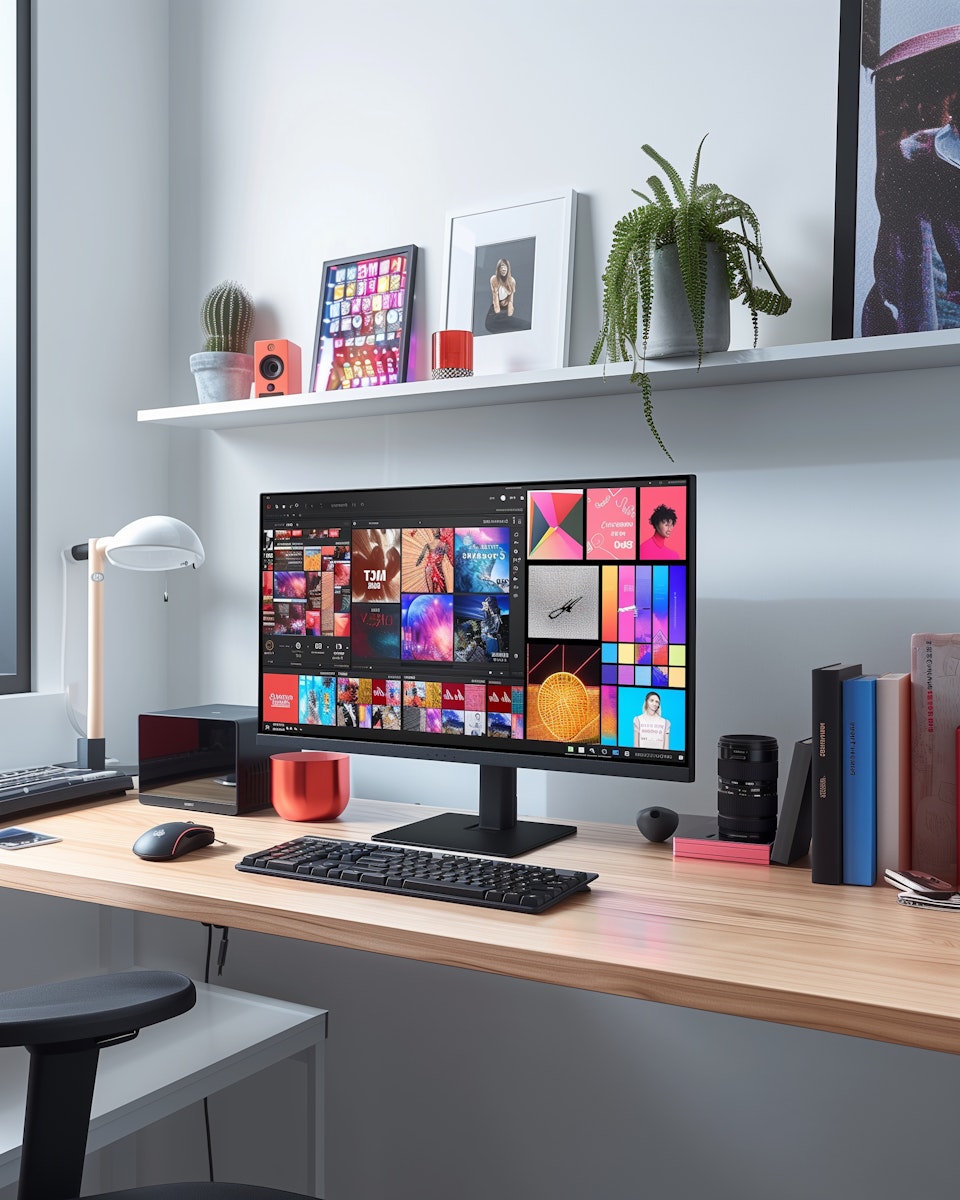
Reduce errors and version confusion
Onboard collaborators easily
Scale projects efficiently
Physical Workspace Optimization
Ergonomic Setup
Monitor positioning:
Eye level with the top third of the screen
20-30 inches from your face
Second monitor at the same height and angle
Desk organization:
Keep only current project materials visible
Cable management for a clean workspace
Proper lighting (reduce eye strain)
Whiteboard or sketchpad for ideation
Tools within reach:
Stylus/pen for quick sketches
Notebook for brainstorming
Phone on silent (minimize distractions)
Minimize Distractions
Close unnecessary browser tabs
Use focus apps (Freedom, Forest, Focus@Will)
Set "deep work" blocks (2-4 hours)
Turn off non-critical notifications
Digital Asset Organization System
Folder Structure Template
📁 Projects/
  📁 2025/
    📁 Client-Name-Project-Name/
      📁 01-Discovery/
        📄 Research-notes.pdf
        📄 Personas.pdf
        📄 Competitor-analysis.pdf
      📁 02-Wireframes/
        📄 Wireframes-v1.fig
        📄 Wireframes-v2-revised.fig
      📁 03-Design/
        📁 Final/
        📁 Concepts/
        📁 Assets/
          📁 Images/
          📁 Icons/
          📁 Logos/
      📁 04-Handoff/
        📄 Style-guide.pdf
        📄 Developer-notes.pdf
      📁 05-Archive
File Naming Convention
Use this consistent format:
Pattern: ProjectName_AssetType_Version_Date.extension
Examples:
AcmeWebsite_Homepage_v3_2025-01-15.figAcmeWebsite_Logo_Final_2025-01-20.svgAcmeWebsite_StyleGuide_v2_2025-01-25.pdf
Rules:
No spaces (use hyphens or underscores)
Include version numbers
Add dates for time-sensitive files
Use descriptive names, not "final_final_v3."
Design Tool Organization
Figma/Sketch best practices:
Pages for phases: Research, Wireframes, Design, Archive
Frames named clearly: "Homepage-Desktop-1440px"
Components library: Buttons, forms, cards, navigation
Color/text styles: Name semantically ("primary-blue" not "color-1")
Consistent layer naming: "hero-section" not "Rectangle 47."
Plugin recommendations:
Figma: Autoflow (flowcharts), Stark (accessibility), Rename It (batch rename)
Sketch: Runner (quick actions), Sketch Measure (specs), Symbol Organizer
Cloud Storage Strategy
Primary storage: Google Drive, Dropbox, OneDrive
Design files: Figma (cloud-native), Adobe Creative Cloud
Version control: Abstract (design version control)
Backups: Automated weekly backups to an external drive
Folder sync rules:
Keep active projects in local sync
Archive completed projects to the cloud-only
Share client folders with view-only access
Asset Libraries to Maintain
Typography assets:
Font files organized by project
Font pairing combinations documented
License information for each font
Icon libraries:
Organized by style (outline, filled, color)
Consistent sizing (24px, 32px, 48px)
SVG format for scalability
Image resources:
Stock photo sources (Unsplash, Pexels)
Brand photography organized by category
Optimized for web (compressed, correct format)
Color systems:
Brand color palettes saved as swatches
Accessibility-tested combinations
Color naming conventions documented
4. Assign Tasks and Responsibilities Clearly
Why Clear Ownership Prevents Delays
The collaboration challenge: Multi-person projects without clear ownership create:
Duplicated work (2 people designing the same component)
Missed tasks (everyone assumes someone else is handling it)
Accountability gaps (no one is responsible when something fails)
Communication breakdowns
Solution: Crystal-clear task assignment with single points of ownership.
RACI Matrix for Design Projects
RACI roles:
R = Responsible: Does the work
A = Accountable: Ultimately answerable (only ONE per task)
C = Consulted: Provides input
I = Informed: Kept updated
Example RACI for website redesign:
Task | Designer | Developer | Client | Project Manager |
|---|---|---|---|---|
Wireframes | R | C | C | A |
Visual Design | R | I | C | A |
Prototype | R | C | I | A |
Development | C | R | I | A |
Content | C | I | R | A |
Final QA | C | C | A | R |
Task Assignment Best Practices
Use Project Management Tools
Asana: Visual boards with task dependencies
Monday.com: Customizable workflows and automation
Trello: Simple kanban boards for small teams
ClickUp: All-in-one with time tracking
Notion: Flexible databases and wikis
Write Clear Task Descriptions
Bad task: "Design homepage."
Good task:
Title: Design Homepage Hero Section
Description: Create hero section with main CTA, headline, and background image
Specs:
- Desktop: 1440px width
- Mobile: 375px width
- Include 2 CTA button variations
- Use brand colors from style guide

Due: January 20, 2025
Assigned to: Sarah (Designer)
Reviewers: Mike (Creative Director)
Priority: High
Set Realistic Deadlines
Time estimation formula:
Estimate optimistically: Best-case scenario
Add 50% buffer: Account for interruptions
Include review time: 1-2 days for feedback cycles
Build in Slack: 20% buffer for unexpected issues
Example:
Optimistic: 6 hours to design homepage
With buffer: 9 hours (6 × 1.5)
Plus review: +1 day
Total estimate: 2 working days
Daily Standups for Team Projects
15-minute daily check-in:
What did you complete yesterday?
What are you working on today?
Any blockers or obstacles?
Tools: Zoom, Slack huddles, Loom (async video updates)
Communication Protocols
Choose the Right Channel
Slack/Teams: Quick questions, updates, non-urgent
Email: Formal communication, client updates, documentation
Meetings: Complex discussions, presentations, brainstorming
Loom/Video: Design walkthroughs, feedback, explanations
Figma Comments: Design-specific feedback and iteration
Feedback Request Template
Hey [Name],

I need your feedback on [specific element] by [date].

Context: [Why this matters, what problem it solves]

Review link: [Figma/prototype URL]

Specific questions:
1. Does the layout support our conversion goals?
2. Is the visual hierarchy clear?
3. Any accessibility concerns?

Please comment directly in Figma or reply by [deadline].

Thanks


5. Leverage Templates, Presets, and Design Systems
Why Reinventing the Wheel Wastes Time
The efficiency trap: Designers spend 40-50% of their time on repetitive tasks:
Recreating similar layouts
Rebuilding common components
Reformatting text styles
Exporting assets the same way
The solution: Build reusable systems that reduce repetitive work by 60-70%.
Building Your Design System
Start with Atomic Design Principles
Atoms: Basic elements
Buttons
Input fields
Labels
Icons
Molecules: Simple combinations
Form field (label + input + error message)
Card header (icon + title + menu)
Search bar (input + button)
Organisms: Complex components
Navigation bar
Product card
Footer
Hero section
Templates: Page layouts
Homepage template
Product page template
Blog post template
Pages: Final implementations
Create Component Library
In Figma:
Create base components:
Button variants (primary, secondary, ghost)
Input variants (text, email, password)
Card components
Use Auto Layout:
Makes components responsive
Adjusts to content automatically
Reduces manual resizing
Define variants:
Size: Small, Medium, Large
State: Default, Hover, Active, Disabled
Type: Filled, Outline, Ghost
Organize the library:
Group by category (Forms, Navigation, Content)
Consistent naming ("Button/Primary/Large")
Add descriptions for usage guidance
Benefits:
Update once, propagate everywhere
Consistency across designs
Faster iteration and prototyping
Easier collaboration and handoff
Typography Presets
Create text styles for:
Headings:
H1: 40px, Bold, 120% line height
H2: 32px, Semibold, 125% line height
H3: 24px, Semibold, 130% line height
Body text:
Body Large: 18px, Regular, 160% line height
Body: 16px, Regular, 160% line height
Body Small: 14px, Regular, 150% line height
Utility:
Caption: 12px, Regular, 140% line height
Overline: 12px, Bold, 140% line height, All caps
Button: 16px, Semibold, 100% line height
Naming convention: Category/Size/Weight
Example: Body/Large/Regular
Color System Setup
Define semantic colors:
Brand colors:
Primary:
#0066FFSecondary:
#FF6B00Accent:
#00D4AA
UI colors:
Background:
#FFFFFFSurface:
#F5F5F5Border:
#E0E0E0
Text colors:
Primary:
#1A1A1A(AA contrast)Secondary:
#666666Disabled:
#999999
Feedback colors:
Success:
#00C853Warning:
#FFB300Error:
#FF3B30Info:
#2196F3
Name semantically, not literally:
✅
color/primarynotcolor/blue✅
color/successnotcolor/green
Effect Presets
Shadows:
shadow/sm: Subtle depth for cardsshadow/md: Standard elevationshadow/lg: Prominent floating elementsshadow/xl: Modals and overlays
Blur effects:
blur/sm: 4px for subtle glass effectblur/md: 8px for frosted glassblur/lg: 16px for strong backdrop
Grid systems:
12-column grid for desktop (1440px)
8-column grid for tablet (768px)
4-column grid for mobile (375px)
File and Export Templates
Export settings presets:
Web assets:
PNG: 1x and 2x for retina
SVG: For icons and logos
WebP: For optimized images
Social media:
Instagram Post: 1080x1080px
Instagram Story: 1080x1920px
Facebook Cover: 820x312px
LinkedIn Banner: 1584x396px
Print:
Business Card: 3.5x2in, 300dpi, CMYK
Flyer: 8.5x11in, 300dpi, CMYK
Poster: 18x24in, 300dpi, CMYK
Automation and Plugins
Figma plugins for efficiency:
Content Inserter – Populate designs with realistic content
Unsplash – Insert stock photos directly
Iconify – Access 100,000+ icons
Stark – Check accessibility compliance
Autoflow – Generate user flow diagrams
Content Reel – Insert placeholder text and images
Adobe tools:
Photoshop Actions: Batch edit photos
Illustrator Symbols: Reusable graphic elements
InDesign Templates: Consistent layouts
Creative Cloud Libraries: Sync assets across apps
Template Resources
Free design systems:
Material Design (Google)
Fluent Design (Microsoft)
Carbon Design System (IBM)
Atlassian Design System
Shopify Polaris
Template marketplaces:
UI8.net – Premium design files
Creative Market – Templates and assets
Figma Community – Free community resources
Sketch App Sources – Sketch templates
Starter kits:
Landing page templates
Dashboard UI kits
Mobile app templates
Email templates
Workflow Efficiency Metrics to Track
Measure What Matters
Time tracking:
Average time per project phase
Revision cycles per project
Time spent on meetings vs. execution
Quality indicators:
Client approval rate on first presentation
Number of revision rounds
User testing scores
Productivity metrics:
Projects completed per month
On-time delivery rate
Component reuse percentage
Tools: Toggl Track, Harvest, Clockify, RescueTime
Common Workflow Mistakes to Avoid
❌ Starting design before defining clear goals
❌ Skipping the wireframe phase to "save time."
❌ Poor file organization and naming
❌ No task ownership in team projects
❌ Recreating components from scratch each time
❌ Not documenting design decisions
❌ Skipping design system creation
❌ Inadequate client communication
❌ No buffer time in estimates
❌ Ignoring feedback and iteration cycles
Your 30-Day Workflow Transformation Plan
Week 1: Foundation
Create project brief template
Set up a folder structure system
Establish file naming conventions
Choose a project management tool
Week 2: Systematize
Map your current workflow visually
Identify bottlenecks and time wasters
Create phase checklists
Document your process
Week 3: Build Assets
Start design system/component library
Create typography presets
Define the color system
Set up effects and export presets
Week 4: Optimize
Implement time tracking
Test workflow on new project
Gather feedback from collaborators
Refine and iterate
Key Takeaways
1. Define before you design – 10-15% of project time on clear goals prevents 50%+ of revisions
2. Visualize your workflow – Map processes to identify bottlenecks and standardize approach
3. Organize ruthlessly – Consistent file structure and naming saves 2+ hours weekly
4. Assign clear ownership – RACI matrix eliminates confusion and accountability gaps
5. Build reusable systems – Component libraries and templates reduce repetitive work by 60-70%
Bonus tip: Start small. Implement one strategy per week rather than overhauling everything at once.
Conclusion: From Chaos to Clarity
Streamlined workflows aren't about working harder—they're about working smarter. By implementing these five strategies, you'll:
Save 10-15 hours per week previously lost to disorganization
Reduce revision cycles by 50%+ through clear requirements
Deliver projects 30% faster with optimized processes
Improve quality consistently through systematic approaches
Scale your practice without proportionally increasing stress
The compounding effect: Small improvements in each area create dramatic gains overall. A 10% improvement in five areas equals a 50% increase in productivity.
Start today: Choose one strategy from this guide and implement it this week. Track the results. Refine. Then add the next strategy.
Great design workflows are built iteratively, just like great designs themselves.
Want to see these strategies in action? Explore our portfolio for case studies showing how streamlined workflows deliver exceptional results, or contact us to discuss optimizing your team's design process.
Recommended Tools Summary
Project Management: Asana, Monday.com, Notion, Trello
Design: Figma, Adobe XD, Sketch
Collaboration: Slack, Zoom, Loom
Time Tracking: Toggl, Harvest, Clockify
Asset Management: Google Drive, Dropbox, Creative Cloud
Workflow Mapping: Miro, Figjam, Whimsical
More to Discover


How to Streamline Your Design Workflow: 5 Practical Strategies (2025)
Save time, reduce revisions, and deliver exceptional design work consistently with these proven workflow optimization techniques.
Tutorials
Dec 11, 2025
Inefficient workflows waste time, drain creativity, and lead to costly revisions. The average designer loses 20-30% of their productive time to disorganization, unclear requirements, and repetitive tasks.
The solution? A streamlined design workflow that eliminates friction, automates repetition, and lets you focus on what matters—creating exceptional work.
This tutorial covers five actionable strategies to optimize your design process, whether you're a freelancer, in-house designer, or agency professional.
Set Clear Goals and Define Project Scope
Why Project Clarity Matters
The problem: 67% of design projects fail due to unclear requirements and scope creep. When you start designing without clear objectives, you risk:
Endless revision cycles
Missed deadlines
Client dissatisfaction
Burnout from rework
The solution: Invest 10-15% of project time upfront, defining crystal-clear goals and boundaries.
The Project Definition Framework
Step 1: Identify Business Objectives
Ask these critical questions before opening your design tool:
What problem are we solving?
The user can't find products quickly.
Conversion rate is below the industry average
The brand feels outdated compared to competitors
What does success look like?
20% increase in conversions
50% reduction in customer support tickets
Positive user feedback scores above 4.5/5
Who is the target audience?
Demographics (age, location, income)
Psychographics (values, interests, pain points)
Tech proficiency and device preferences
Step 2: Define Deliverables Precisely
Create a concrete list of what you'll deliver:
Be specific:
❌ "Design a website."
✅ "Design 5 responsive pages (Home, About, Services, Portfolio, Contact) for desktop (1440px), tablet (768px), and mobile (375px)."
Include formats:
Figma files with organized layers
Exported PNG assets at 1x and 2x resolution
Style guide PDF
Developer handoff notes
Set version limits:
2 rounds of revisions included
Additional revisions are billed at an hourly rate
Step 3: Establish Timeline and Milestones
Break the project into phases with clear deadlines:
Example timeline for website redesign:
Week 1: Research & Discovery
Stakeholder interviews (Day 1-2)
Competitor analysis (Day 3)
User research synthesis (Day 4-5)
Week 2: Wireframes & Concept
Low-fidelity wireframes (Day 1-3)
Client feedback session (Day 4)
Revisions (Day 5)
Week 3-4: High-Fidelity Design
Homepage design (Week 3, Day 1-2)
Internal pages (Week 3, Day 3-5)
Client presentation (Week 4, Day 1)
Final revisions (Week 4, Day 2-3)
Week 5: Handoff & Documentation
Developer handoff (Day 1-2)
Style guide creation (Day 3-4)
Final QA (Day 5)
Step 4: Document Scope Boundaries
Clearly state what's NOT included to prevent scope creep:
Out of scope examples:
Custom illustrations (stock photos only)
Animation or motion design
Content writing or copyediting
Development/coding
Social media graphics
Email templates
Tools for Project Definition
Notion – Comprehensive project documentation
Miro – Collaborative brainstorming and mapping
Google Docs – Simple, shareable project briefs
Asana/Monday.com – Project management with timelines
Figjam – Visual project kickoff sessions
Project Brief Template
PROJECT NAME: [Client Name] Website Redesign

BUSINESS OBJECTIVES:
- Increase conversions by 25%
- Modernize brand perception
- Improve mobile experience

TARGET AUDIENCE:
- Age: 25-45
- Tech-savvy professionals
- Mobile-first users (70% mobile traffic)

DELIVERABLES:
- 5 responsive page designs
- Component library in Figma
- Style guide PDF
- Developer handoff notes

TIMELINE:
- Start: January 15, 2025
- Wireframes due: January 22
- Final designs: February 12
- Handoff: February 19

REVISIONS: 2 rounds included

OUT OF SCOPE:
- Custom illustrations
- Content writing
- Email templates
2. Map Out and Visualize Your Workflow
Why Workflow Visualization Prevents Bottlenecks
Visualizing your process helps you:
Identify time-wasting steps
Spot bottlenecks before they happen
Communicate the process to clients and teammates
Standardize approach across projects
Result: 30-40% reduction in project delays and confusion.
The 5-Phase Design Workflow
Phase 1: Discovery & Research (10-15% of timeline)
Activities:
Stakeholder interviews
User research and personas
Competitor analysis
Content audit (existing projects)
Technical constraints review
Deliverables:
Research summary document
User personas
Competitive landscape analysis
Tools: Notion, Miro, Google Forms, Maze
Phase 2: Strategy & Planning (10% of timeline)
Activities:
Information architecture
User flow mapping
Feature prioritization
Content strategy
Deliverables:
Sitemap
User journey maps
Feature priority matrix
Tools: Figjam, Whimsical, Miro, Draw.io
Phase 3: Wireframing & Prototyping (15-20% of timeline)
Activities:
Low-fidelity wireframes
User flow prototypes
First round of feedback
Iteration based on feedback
Deliverables:
Annotated wireframes
Clickable prototype
Revised wireframes
Tools: Figma, Adobe XD, Balsamiq, Sketch
Phase 4: Visual Design (40-50% of timeline)
Activities:
Mood boards and style exploration
High-fidelity mockups
Responsive design variants
Design system components
Client presentations
Deliverables:
High-fidelity designs
Design system/component library
Responsive breakpoints
Interactive prototypes
Tools: Figma, Adobe XD, Sketch, Photoshop, Illustrator
Phase 5: Handoff & QA (10-15% of timeline)
Activities:
Developer handoff documentation
Style guide creation
Asset export and optimization
Design QA during development
Final adjustments
Deliverables:
Developer handoff notes
Exported assets (SVG, PNG, etc.)
Style guide
Component specifications
Tools: Figma Dev Mode, Zeplin, Avocode, InVision
Creating Your Visual Workflow Map
Use a flowchart to map dependencies:
[Discovery] → [Strategy] → [Wireframes] → [Feedback v1]
                                ↓
                         [Revise Wireframes]
                                ↓
[Visual Design] → [Client Review] → [Revisions] → [Final Approval]
                                ↓
                    [Developer Handoff] → [QA] → [Launch]
Color-code phases:
🔵 Blue = Research/Planning
🟡 Yellow = Design Work
🟢 Green = Review/Feedback
🟣 Purple = Handoff/QA
Workflow Optimization Tips
Identify bottlenecks:
Where do projects typically stall?
Which phases take longer than estimated?
Where do most revision requests occur?
Add buffer time:
20% buffer for unexpected delays
Extra time before major client presentations
Slack time between phases for feedback
Create checklists:
Pre-flight checklist before client presentations
Handoff checklist for developers
Launch checklist for final QA
3. Organize Your Workspace and Digital Assets
Why Organization Boosts Productivity
Disorganization costs designers an average of 2 hours per week searching for files, fonts, colors, and components. Over a year, that's 100+ hours of wasted time.
Organized designers:
Find assets 10x faster
Reduce errors and version confusion
Onboard collaborators easily
Scale projects efficiently
Physical Workspace Optimization
Ergonomic Setup
Monitor positioning:
Eye level with the top third of the screen
20-30 inches from your face
Second monitor at the same height and angle
Desk organization:
Keep only current project materials visible
Cable management for a clean workspace
Proper lighting (reduce eye strain)
Whiteboard or sketchpad for ideation
Tools within reach:
Stylus/pen for quick sketches
Notebook for brainstorming
Phone on silent (minimize distractions)
Minimize Distractions
Close unnecessary browser tabs
Use focus apps (Freedom, Forest, Focus@Will)
Set "deep work" blocks (2-4 hours)
Turn off non-critical notifications
Digital Asset Organization System
Folder Structure Template
📁 Projects/
  📁 2025/
    📁 Client-Name-Project-Name/
      📁 01-Discovery/
        📄 Research-notes.pdf
        📄 Personas.pdf
        📄 Competitor-analysis.pdf
      📁 02-Wireframes/
        📄 Wireframes-v1.fig
        📄 Wireframes-v2-revised.fig
      📁 03-Design/
        📁 Final/
        📁 Concepts/
        📁 Assets/
          📁 Images/
          📁 Icons/
          📁 Logos/
      📁 04-Handoff/
        📄 Style-guide.pdf
        📄 Developer-notes.pdf
      📁 05-Archive
File Naming Convention
Use this consistent format:
Pattern: ProjectName_AssetType_Version_Date.extension
Examples:
AcmeWebsite_Homepage_v3_2025-01-15.figAcmeWebsite_Logo_Final_2025-01-20.svgAcmeWebsite_StyleGuide_v2_2025-01-25.pdf
Rules:
No spaces (use hyphens or underscores)
Include version numbers
Add dates for time-sensitive files
Use descriptive names, not "final_final_v3."
Design Tool Organization
Figma/Sketch best practices:
Pages for phases: Research, Wireframes, Design, Archive
Frames named clearly: "Homepage-Desktop-1440px"
Components library: Buttons, forms, cards, navigation
Color/text styles: Name semantically ("primary-blue" not "color-1")
Consistent layer naming: "hero-section" not "Rectangle 47."
Plugin recommendations:
Figma: Autoflow (flowcharts), Stark (accessibility), Rename It (batch rename)
Sketch: Runner (quick actions), Sketch Measure (specs), Symbol Organizer
Cloud Storage Strategy
Primary storage: Google Drive, Dropbox, OneDrive
Design files: Figma (cloud-native), Adobe Creative Cloud
Version control: Abstract (design version control)
Backups: Automated weekly backups to an external drive
Folder sync rules:
Keep active projects in local sync
Archive completed projects to the cloud-only
Share client folders with view-only access
Asset Libraries to Maintain
Typography assets:
Font files organized by project
Font pairing combinations documented
License information for each font
Icon libraries:
Organized by style (outline, filled, color)
Consistent sizing (24px, 32px, 48px)
SVG format for scalability
Image resources:
Stock photo sources (Unsplash, Pexels)
Brand photography organized by category
Optimized for web (compressed, correct format)
Color systems:
Brand color palettes saved as swatches
Accessibility-tested combinations
Color naming conventions documented
4. Assign Tasks and Responsibilities Clearly
Why Clear Ownership Prevents Delays
The collaboration challenge: Multi-person projects without clear ownership create:
Duplicated work (2 people designing the same component)
Missed tasks (everyone assumes someone else is handling it)
Accountability gaps (no one is responsible when something fails)
Communication breakdowns
Solution: Crystal-clear task assignment with single points of ownership.
RACI Matrix for Design Projects
RACI roles:
R = Responsible: Does the work
A = Accountable: Ultimately answerable (only ONE per task)
C = Consulted: Provides input
I = Informed: Kept updated
Example RACI for website redesign:
Task | Designer | Developer | Client | Project Manager |
|---|---|---|---|---|
Wireframes | R | C | C | A |
Visual Design | R | I | C | A |
Prototype | R | C | I | A |
Development | C | R | I | A |
Content | C | I | R | A |
Final QA | C | C | A | R |
Task Assignment Best Practices
Use Project Management Tools
Asana: Visual boards with task dependencies
Monday.com: Customizable workflows and automation
Trello: Simple kanban boards for small teams
ClickUp: All-in-one with time tracking
Notion: Flexible databases and wikis
Write Clear Task Descriptions
Bad task: "Design homepage."
Good task:
Title: Design Homepage Hero Section
Description: Create hero section with main CTA, headline, and background image
Specs:
- Desktop: 1440px width
- Mobile: 375px width
- Include 2 CTA button variations
- Use brand colors from style guide

Due: January 20, 2025
Assigned to: Sarah (Designer)
Reviewers: Mike (Creative Director)
Priority: High
Set Realistic Deadlines
Time estimation formula:
Estimate optimistically: Best-case scenario
Add 50% buffer: Account for interruptions
Include review time: 1-2 days for feedback cycles
Build in Slack: 20% buffer for unexpected issues
Example:
Optimistic: 6 hours to design homepage
With buffer: 9 hours (6 × 1.5)
Plus review: +1 day
Total estimate: 2 working days
Daily Standups for Team Projects
15-minute daily check-in:
What did you complete yesterday?
What are you working on today?
Any blockers or obstacles?
Tools: Zoom, Slack huddles, Loom (async video updates)
Communication Protocols
Choose the Right Channel
Slack/Teams: Quick questions, updates, non-urgent
Email: Formal communication, client updates, documentation
Meetings: Complex discussions, presentations, brainstorming
Loom/Video: Design walkthroughs, feedback, explanations
Figma Comments: Design-specific feedback and iteration
Feedback Request Template
Hey [Name],

I need your feedback on [specific element] by [date].

Context: [Why this matters, what problem it solves]

Review link: [Figma/prototype URL]

Specific questions:
1. Does the layout support our conversion goals?
2. Is the visual hierarchy clear?
3. Any accessibility concerns?

Please comment directly in Figma or reply by [deadline].

Thanks
5. Leverage Templates, Presets, and Design Systems
Why Reinventing the Wheel Wastes Time
The efficiency trap: Designers spend 40-50% of their time on repetitive tasks:
Recreating similar layouts
Rebuilding common components
Reformatting text styles
Exporting assets the same way
The solution: Build reusable systems that reduce repetitive work by 60-70%.
Building Your Design System
Start with Atomic Design Principles
Atoms: Basic elements
Buttons
Input fields
Labels
Icons
Molecules: Simple combinations
Form field (label + input + error message)
Card header (icon + title + menu)
Search bar (input + button)
Organisms: Complex components
Navigation bar
Product card
Footer
Hero section
Templates: Page layouts
Homepage template
Product page template
Blog post template
Pages: Final implementations
Create Component Library
In Figma:
Create base components:
Button variants (primary, secondary, ghost)
Input variants (text, email, password)
Card components
Use Auto Layout:
Makes components responsive
Adjusts to content automatically
Reduces manual resizing
Define variants:
Size: Small, Medium, Large
State: Default, Hover, Active, Disabled
Type: Filled, Outline, Ghost
Organize the library:
Group by category (Forms, Navigation, Content)
Consistent naming ("Button/Primary/Large")
Add descriptions for usage guidance
Benefits:
Update once, propagate everywhere
Consistency across designs
Faster iteration and prototyping
Easier collaboration and handoff
Typography Presets
Create text styles for:
Headings:
H1: 40px, Bold, 120% line height
H2: 32px, Semibold, 125% line height
H3: 24px, Semibold, 130% line height
Body text:
Body Large: 18px, Regular, 160% line height
Body: 16px, Regular, 160% line height
Body Small: 14px, Regular, 150% line height
Utility:
Caption: 12px, Regular, 140% line height
Overline: 12px, Bold, 140% line height, All caps
Button: 16px, Semibold, 100% line height
Naming convention: Category/Size/Weight
Example: Body/Large/Regular
Color System Setup
Define semantic colors:
Brand colors:
Primary:
#0066FFSecondary:
#FF6B00Accent:
#00D4AA
UI colors:
Background:
#FFFFFFSurface:
#F5F5F5Border:
#E0E0E0
Text colors:
Primary:
#1A1A1A(AA contrast)Secondary:
#666666Disabled:
#999999
Feedback colors:
Success:
#00C853Warning:
#FFB300Error:
#FF3B30Info:
#2196F3
Name semantically, not literally:
✅
color/primarynotcolor/blue✅
color/successnotcolor/green
Effect Presets
Shadows:
shadow/sm: Subtle depth for cardsshadow/md: Standard elevationshadow/lg: Prominent floating elementsshadow/xl: Modals and overlays
Blur effects:
blur/sm: 4px for subtle glass effectblur/md: 8px for frosted glassblur/lg: 16px for strong backdrop
Grid systems:
12-column grid for desktop (1440px)
8-column grid for tablet (768px)
4-column grid for mobile (375px)
File and Export Templates
Export settings presets:
Web assets:
PNG: 1x and 2x for retina
SVG: For icons and logos
WebP: For optimized images
Social media:
Instagram Post: 1080x1080px
Instagram Story: 1080x1920px
Facebook Cover: 820x312px
LinkedIn Banner: 1584x396px
Print:
Business Card: 3.5x2in, 300dpi, CMYK
Flyer: 8.5x11in, 300dpi, CMYK
Poster: 18x24in, 300dpi, CMYK
Automation and Plugins
Figma plugins for efficiency:
Content Inserter – Populate designs with realistic content
Unsplash – Insert stock photos directly
Iconify – Access 100,000+ icons
Stark – Check accessibility compliance
Autoflow – Generate user flow diagrams
Content Reel – Insert placeholder text and images
Adobe tools:
Photoshop Actions: Batch edit photos
Illustrator Symbols: Reusable graphic elements
InDesign Templates: Consistent layouts
Creative Cloud Libraries: Sync assets across apps
Template Resources
Free design systems:
Material Design (Google)
Fluent Design (Microsoft)
Carbon Design System (IBM)
Atlassian Design System
Shopify Polaris
Template marketplaces:
UI8.net – Premium design files
Creative Market – Templates and assets
Figma Community – Free community resources
Sketch App Sources – Sketch templates
Starter kits:
Landing page templates
Dashboard UI kits
Mobile app templates
Email templates
Workflow Efficiency Metrics to Track
Measure What Matters
Time tracking:
Average time per project phase
Revision cycles per project
Time spent on meetings vs. execution
Quality indicators:
Client approval rate on first presentation
Number of revision rounds
User testing scores
Productivity metrics:
Projects completed per month
On-time delivery rate
Component reuse percentage
Tools: Toggl Track, Harvest, Clockify, RescueTime
Common Workflow Mistakes to Avoid
❌ Starting design before defining clear goals
❌ Skipping the wireframe phase to "save time."
❌ Poor file organization and naming
❌ No task ownership in team projects
❌ Recreating components from scratch each time
❌ Not documenting design decisions
❌ Skipping design system creation
❌ Inadequate client communication
❌ No buffer time in estimates
❌ Ignoring feedback and iteration cycles
Your 30-Day Workflow Transformation Plan
Week 1: Foundation
Create project brief template
Set up a folder structure system
Establish file naming conventions
Choose a project management tool
Week 2: Systematize
Map your current workflow visually
Identify bottlenecks and time wasters
Create phase checklists
Document your process
Week 3: Build Assets
Start design system/component library
Create typography presets
Define the color system
Set up effects and export presets
Week 4: Optimize
Implement time tracking
Test workflow on new project
Gather feedback from collaborators
Refine and iterate
Key Takeaways
1. Define before you design – 10-15% of project time on clear goals prevents 50%+ of revisions
2. Visualize your workflow – Map processes to identify bottlenecks and standardize approach
3. Organize ruthlessly – Consistent file structure and naming saves 2+ hours weekly
4. Assign clear ownership – RACI matrix eliminates confusion and accountability gaps
5. Build reusable systems – Component libraries and templates reduce repetitive work by 60-70%
Bonus tip: Start small. Implement one strategy per week rather than overhauling everything at once.
Conclusion: From Chaos to Clarity
Streamlined workflows aren't about working harder—they're about working smarter. By implementing these five strategies, you'll:
Save 10-15 hours per week previously lost to disorganization
Reduce revision cycles by 50%+ through clear requirements
Deliver projects 30% faster with optimized processes
Improve quality consistently through systematic approaches
Scale your practice without proportionally increasing stress
The compounding effect: Small improvements in each area create dramatic gains overall. A 10% improvement in five areas equals a 50% increase in productivity.
Start today: Choose one strategy from this guide and implement it this week. Track the results. Refine. Then add the next strategy.
Great design workflows are built iteratively, just like great designs themselves.
Want to see these strategies in action? Explore our portfolio for case studies showing how streamlined workflows deliver exceptional results, or contact us to discuss optimizing your team's design process.
Recommended Tools Summary
Project Management: Asana, Monday.com, Notion, Trello
Design: Figma, Adobe XD, Sketch
Collaboration: Slack, Zoom, Loom
Time Tracking: Toggl, Harvest, Clockify
Asset Management: Google Drive, Dropbox, Creative Cloud
Workflow Mapping: Miro, Figjam, Whimsical
More to Discover
How to Streamline Your Design Workflow: 5 Practical Strategies (2025)
Save time, reduce revisions, and deliver exceptional design work consistently with these proven workflow optimization techniques.
Tutorials
Dec 11, 2025
Inefficient workflows waste time, drain creativity, and lead to costly revisions. The average designer loses 20-30% of their productive time to disorganization, unclear requirements, and repetitive tasks.
The solution? A streamlined design workflow that eliminates friction, automates repetition, and lets you focus on what matters—creating exceptional work.
This tutorial covers five actionable strategies to optimize your design process, whether you're a freelancer, in-house designer, or agency professional.
Set Clear Goals and Define Project Scope
Why Project Clarity Matters
The problem: 67% of design projects fail due to unclear requirements and scope creep. When you start designing without clear objectives, you risk:
Endless revision cycles
Missed deadlines
Client dissatisfaction
Burnout from rework
The solution: Invest 10-15% of project time upfront, defining crystal-clear goals and boundaries.
The Project Definition Framework
Step 1: Identify Business Objectives
Ask these critical questions before opening your design tool:
What problem are we solving?
The user can't find products quickly.
Conversion rate is below the industry average
The brand feels outdated compared to competitors
What does success look like?
20% increase in conversions
50% reduction in customer support tickets
Positive user feedback scores above 4.5/5
Who is the target audience?
Demographics (age, location, income)
Psychographics (values, interests, pain points)
Tech proficiency and device preferences
Step 2: Define Deliverables Precisely
Create a concrete list of what you'll deliver:
Be specific:
❌ "Design a website."
✅ "Design 5 responsive pages (Home, About, Services, Portfolio, Contact) for desktop (1440px), tablet (768px), and mobile (375px)."
Include formats:
Figma files with organized layers
Exported PNG assets at 1x and 2x resolution
Style guide PDF
Developer handoff notes
Set version limits:
2 rounds of revisions included
Additional revisions are billed at an hourly rate
Step 3: Establish Timeline and Milestones
Break the project into phases with clear deadlines:
Example timeline for website redesign:
Week 1: Research & Discovery
Stakeholder interviews (Day 1-2)
Competitor analysis (Day 3)
User research synthesis (Day 4-5)
Week 2: Wireframes & Concept
Low-fidelity wireframes (Day 1-3)
Client feedback session (Day 4)
Revisions (Day 5)
Week 3-4: High-Fidelity Design
Homepage design (Week 3, Day 1-2)
Internal pages (Week 3, Day 3-5)
Client presentation (Week 4, Day 1)
Final revisions (Week 4, Day 2-3)
Week 5: Handoff & Documentation
Developer handoff (Day 1-2)
Style guide creation (Day 3-4)
Final QA (Day 5)
Step 4: Document Scope Boundaries
Clearly state what's NOT included to prevent scope creep:
Out of scope examples:
Custom illustrations (stock photos only)
Animation or motion design
Content writing or copyediting
Development/coding
Social media graphics
Email templates
Tools for Project Definition
Notion – Comprehensive project documentation
Miro – Collaborative brainstorming and mapping
Google Docs – Simple, shareable project briefs
Asana/Monday.com – Project management with timelines
Figjam – Visual project kickoff sessions
Project Brief Template
PROJECT NAME: [Client Name] Website Redesign

BUSINESS OBJECTIVES:
- Increase conversions by 25%
- Modernize brand perception
- Improve mobile experience

TARGET AUDIENCE:
- Age: 25-45
- Tech-savvy professionals
- Mobile-first users (70% mobile traffic)

DELIVERABLES:
- 5 responsive page designs
- Component library in Figma
- Style guide PDF
- Developer handoff notes

TIMELINE:
- Start: January 15, 2025
- Wireframes due: January 22
- Final designs: February 12
- Handoff: February 19

REVISIONS: 2 rounds included

OUT OF SCOPE:
- Custom illustrations
- Content writing
- Email templates
2. Map Out and Visualize Your Workflow
Why Workflow Visualization Prevents Bottlenecks
Visualizing your process helps you:
Identify time-wasting steps
Spot bottlenecks before they happen
Communicate the process to clients and teammates
Standardize approach across projects
Result: 30-40% reduction in project delays and confusion.
The 5-Phase Design Workflow
Phase 1: Discovery & Research (10-15% of timeline)
Activities:
Stakeholder interviews
User research and personas
Competitor analysis
Content audit (existing projects)
Technical constraints review
Deliverables:
Research summary document
User personas
Competitive landscape analysis
Tools: Notion, Miro, Google Forms, Maze
Phase 2: Strategy & Planning (10% of timeline)
Activities:
Information architecture
User flow mapping
Feature prioritization
Content strategy
Deliverables:
Sitemap
User journey maps
Feature priority matrix
Tools: Figjam, Whimsical, Miro, Draw.io
Phase 3: Wireframing & Prototyping (15-20% of timeline)
Activities:
Low-fidelity wireframes
User flow prototypes
First round of feedback
Iteration based on feedback
Deliverables:
Annotated wireframes
Clickable prototype
Revised wireframes
Tools: Figma, Adobe XD, Balsamiq, Sketch
Phase 4: Visual Design (40-50% of timeline)
Activities:
Mood boards and style exploration
High-fidelity mockups
Responsive design variants
Design system components
Client presentations
Deliverables:
High-fidelity designs
Design system/component library
Responsive breakpoints
Interactive prototypes
Tools: Figma, Adobe XD, Sketch, Photoshop, Illustrator
Phase 5: Handoff & QA (10-15% of timeline)
Activities:
Developer handoff documentation
Style guide creation
Asset export and optimization
Design QA during development
Final adjustments
Deliverables:
Developer handoff notes
Exported assets (SVG, PNG, etc.)
Style guide
Component specifications
Tools: Figma Dev Mode, Zeplin, Avocode, InVision
Creating Your Visual Workflow Map
Use a flowchart to map dependencies:
[Discovery] → [Strategy] → [Wireframes] → [Feedback v1]
                                ↓
                         [Revise Wireframes]
                                ↓
[Visual Design] → [Client Review] → [Revisions] → [Final Approval]
                                ↓
                    [Developer Handoff] → [QA] → [Launch]
Color-code phases:
🔵 Blue = Research/Planning
🟡 Yellow = Design Work
🟢 Green = Review/Feedback
🟣 Purple = Handoff/QA
Workflow Optimization Tips
Identify bottlenecks:
Where do projects typically stall?
Which phases take longer than estimated?
Where do most revision requests occur?
Add buffer time:
20% buffer for unexpected delays
Extra time before major client presentations
Slack time between phases for feedback
Create checklists:
Pre-flight checklist before client presentations
Handoff checklist for developers
Launch checklist for final QA
3. Organize Your Workspace and Digital Assets
Why Organization Boosts Productivity
Disorganization costs designers an average of 2 hours per week searching for files, fonts, colors, and components. Over a year, that's 100+ hours of wasted time.
Organized designers:
Find assets 10x faster
Reduce errors and version confusion
Onboard collaborators easily
Scale projects efficiently
Physical Workspace Optimization
Ergonomic Setup
Monitor positioning:
Eye level with the top third of the screen
20-30 inches from your face
Second monitor at the same height and angle
Desk organization:
Keep only current project materials visible
Cable management for a clean workspace
Proper lighting (reduce eye strain)
Whiteboard or sketchpad for ideation
Tools within reach:
Stylus/pen for quick sketches
Notebook for brainstorming
Phone on silent (minimize distractions)
Minimize Distractions
Close unnecessary browser tabs
Use focus apps (Freedom, Forest, Focus@Will)
Set "deep work" blocks (2-4 hours)
Turn off non-critical notifications
Digital Asset Organization System
Folder Structure Template
📁 Projects/
  📁 2025/
    📁 Client-Name-Project-Name/
      📁 01-Discovery/
        📄 Research-notes.pdf
        📄 Personas.pdf
        📄 Competitor-analysis.pdf
      📁 02-Wireframes/
        📄 Wireframes-v1.fig
        📄 Wireframes-v2-revised.fig
      📁 03-Design/
        📁 Final/
        📁 Concepts/
        📁 Assets/
          📁 Images/
          📁 Icons/
          📁 Logos/
      📁 04-Handoff/
        📄 Style-guide.pdf
        📄 Developer-notes.pdf
      📁 05-Archive
File Naming Convention
Use this consistent format:
Pattern: ProjectName_AssetType_Version_Date.extension
Examples:
AcmeWebsite_Homepage_v3_2025-01-15.figAcmeWebsite_Logo_Final_2025-01-20.svgAcmeWebsite_StyleGuide_v2_2025-01-25.pdf
Rules:
No spaces (use hyphens or underscores)
Include version numbers
Add dates for time-sensitive files
Use descriptive names, not "final_final_v3."
Design Tool Organization
Figma/Sketch best practices:
Pages for phases: Research, Wireframes, Design, Archive
Frames named clearly: "Homepage-Desktop-1440px"
Components library: Buttons, forms, cards, navigation
Color/text styles: Name semantically ("primary-blue" not "color-1")
Consistent layer naming: "hero-section" not "Rectangle 47."
Plugin recommendations:
Figma: Autoflow (flowcharts), Stark (accessibility), Rename It (batch rename)
Sketch: Runner (quick actions), Sketch Measure (specs), Symbol Organizer
Cloud Storage Strategy
Primary storage: Google Drive, Dropbox, OneDrive
Design files: Figma (cloud-native), Adobe Creative Cloud
Version control: Abstract (design version control)
Backups: Automated weekly backups to an external drive
Folder sync rules:
Keep active projects in local sync
Archive completed projects to the cloud-only
Share client folders with view-only access
Asset Libraries to Maintain
Typography assets:
Font files organized by project
Font pairing combinations documented
License information for each font
Icon libraries:
Organized by style (outline, filled, color)
Consistent sizing (24px, 32px, 48px)
SVG format for scalability
Image resources:
Stock photo sources (Unsplash, Pexels)
Brand photography organized by category
Optimized for web (compressed, correct format)
Color systems:
Brand color palettes saved as swatches
Accessibility-tested combinations
Color naming conventions documented
4. Assign Tasks and Responsibilities Clearly
Why Clear Ownership Prevents Delays
The collaboration challenge: Multi-person projects without clear ownership create:
Duplicated work (2 people designing the same component)
Missed tasks (everyone assumes someone else is handling it)
Accountability gaps (no one is responsible when something fails)
Communication breakdowns
Solution: Crystal-clear task assignment with single points of ownership.
RACI Matrix for Design Projects
RACI roles:
R = Responsible: Does the work
A = Accountable: Ultimately answerable (only ONE per task)
C = Consulted: Provides input
I = Informed: Kept updated
Example RACI for website redesign:
Task | Designer | Developer | Client | Project Manager |
|---|---|---|---|---|
Wireframes | R | C | C | A |
Visual Design | R | I | C | A |
Prototype | R | C | I | A |
Development | C | R | I | A |
Content | C | I | R | A |
Final QA | C | C | A | R |
Task Assignment Best Practices
Use Project Management Tools
Asana: Visual boards with task dependencies
Monday.com: Customizable workflows and automation
Trello: Simple kanban boards for small teams
ClickUp: All-in-one with time tracking
Notion: Flexible databases and wikis
Write Clear Task Descriptions
Bad task: "Design homepage."
Good task:
Title: Design Homepage Hero Section
Description: Create hero section with main CTA, headline, and background image
Specs:
- Desktop: 1440px width
- Mobile: 375px width
- Include 2 CTA button variations
- Use brand colors from style guide

Due: January 20, 2025
Assigned to: Sarah (Designer)
Reviewers: Mike (Creative Director)
Priority: High
Set Realistic Deadlines
Time estimation formula:
Estimate optimistically: Best-case scenario
Add 50% buffer: Account for interruptions
Include review time: 1-2 days for feedback cycles
Build in Slack: 20% buffer for unexpected issues
Example:
Optimistic: 6 hours to design homepage
With buffer: 9 hours (6 × 1.5)
Plus review: +1 day
Total estimate: 2 working days
Daily Standups for Team Projects
15-minute daily check-in:
What did you complete yesterday?
What are you working on today?
Any blockers or obstacles?
Tools: Zoom, Slack huddles, Loom (async video updates)
Communication Protocols
Choose the Right Channel
Slack/Teams: Quick questions, updates, non-urgent
Email: Formal communication, client updates, documentation
Meetings: Complex discussions, presentations, brainstorming
Loom/Video: Design walkthroughs, feedback, explanations
Figma Comments: Design-specific feedback and iteration
Feedback Request Template
Hey [Name],

I need your feedback on [specific element] by [date].

Context: [Why this matters, what problem it solves]

Review link: [Figma/prototype URL]

Specific questions:
1. Does the layout support our conversion goals?
2. Is the visual hierarchy clear?
3. Any accessibility concerns?

Please comment directly in Figma or reply by [deadline].

Thanks
5. Leverage Templates, Presets, and Design Systems
Why Reinventing the Wheel Wastes Time
The efficiency trap: Designers spend 40-50% of their time on repetitive tasks:
Recreating similar layouts
Rebuilding common components
Reformatting text styles
Exporting assets the same way
The solution: Build reusable systems that reduce repetitive work by 60-70%.
Building Your Design System
Start with Atomic Design Principles
Atoms: Basic elements
Buttons
Input fields
Labels
Icons
Molecules: Simple combinations
Form field (label + input + error message)
Card header (icon + title + menu)
Search bar (input + button)
Organisms: Complex components
Navigation bar
Product card
Footer
Hero section
Templates: Page layouts
Homepage template
Product page template
Blog post template
Pages: Final implementations
Create Component Library
In Figma:
Create base components:
Button variants (primary, secondary, ghost)
Input variants (text, email, password)
Card components
Use Auto Layout:
Makes components responsive
Adjusts to content automatically
Reduces manual resizing
Define variants:
Size: Small, Medium, Large
State: Default, Hover, Active, Disabled
Type: Filled, Outline, Ghost
Organize the library:
Group by category (Forms, Navigation, Content)
Consistent naming ("Button/Primary/Large")
Add descriptions for usage guidance
Benefits:
Update once, propagate everywhere
Consistency across designs
Faster iteration and prototyping
Easier collaboration and handoff
Typography Presets
Create text styles for:
Headings:
H1: 40px, Bold, 120% line height
H2: 32px, Semibold, 125% line height
H3: 24px, Semibold, 130% line height
Body text:
Body Large: 18px, Regular, 160% line height
Body: 16px, Regular, 160% line height
Body Small: 14px, Regular, 150% line height
Utility:
Caption: 12px, Regular, 140% line height
Overline: 12px, Bold, 140% line height, All caps
Button: 16px, Semibold, 100% line height
Naming convention: Category/Size/Weight
Example: Body/Large/Regular
Color System Setup
Define semantic colors:
Brand colors:
Primary:
#0066FFSecondary:
#FF6B00Accent:
#00D4AA
UI colors:
Background:
#FFFFFFSurface:
#F5F5F5Border:
#E0E0E0
Text colors:
Primary:
#1A1A1A(AA contrast)Secondary:
#666666Disabled:
#999999
Feedback colors:
Success:
#00C853Warning:
#FFB300Error:
#FF3B30Info:
#2196F3
Name semantically, not literally:
✅
color/primarynotcolor/blue✅
color/successnotcolor/green
Effect Presets
Shadows:
shadow/sm: Subtle depth for cardsshadow/md: Standard elevationshadow/lg: Prominent floating elementsshadow/xl: Modals and overlays
Blur effects:
blur/sm: 4px for subtle glass effectblur/md: 8px for frosted glassblur/lg: 16px for strong backdrop
Grid systems:
12-column grid for desktop (1440px)
8-column grid for tablet (768px)
4-column grid for mobile (375px)
File and Export Templates
Export settings presets:
Web assets:
PNG: 1x and 2x for retina
SVG: For icons and logos
WebP: For optimized images
Social media:
Instagram Post: 1080x1080px
Instagram Story: 1080x1920px
Facebook Cover: 820x312px
LinkedIn Banner: 1584x396px
Print:
Business Card: 3.5x2in, 300dpi, CMYK
Flyer: 8.5x11in, 300dpi, CMYK
Poster: 18x24in, 300dpi, CMYK
Automation and Plugins
Figma plugins for efficiency:
Content Inserter – Populate designs with realistic content
Unsplash – Insert stock photos directly
Iconify – Access 100,000+ icons
Stark – Check accessibility compliance
Autoflow – Generate user flow diagrams
Content Reel – Insert placeholder text and images
Adobe tools:
Photoshop Actions: Batch edit photos
Illustrator Symbols: Reusable graphic elements
InDesign Templates: Consistent layouts
Creative Cloud Libraries: Sync assets across apps
Template Resources
Free design systems:
Material Design (Google)
Fluent Design (Microsoft)
Carbon Design System (IBM)
Atlassian Design System
Shopify Polaris
Template marketplaces:
UI8.net – Premium design files
Creative Market – Templates and assets
Figma Community – Free community resources
Sketch App Sources – Sketch templates
Starter kits:
Landing page templates
Dashboard UI kits
Mobile app templates
Email templates
Workflow Efficiency Metrics to Track
Measure What Matters
Time tracking:
Average time per project phase
Revision cycles per project
Time spent on meetings vs. execution
Quality indicators:
Client approval rate on first presentation
Number of revision rounds
User testing scores
Productivity metrics:
Projects completed per month
On-time delivery rate
Component reuse percentage
Tools: Toggl Track, Harvest, Clockify, RescueTime
Common Workflow Mistakes to Avoid
❌ Starting design before defining clear goals
❌ Skipping the wireframe phase to "save time."
❌ Poor file organization and naming
❌ No task ownership in team projects
❌ Recreating components from scratch each time
❌ Not documenting design decisions
❌ Skipping design system creation
❌ Inadequate client communication
❌ No buffer time in estimates
❌ Ignoring feedback and iteration cycles
Your 30-Day Workflow Transformation Plan
Week 1: Foundation
Create project brief template
Set up a folder structure system
Establish file naming conventions
Choose a project management tool
Week 2: Systematize
Map your current workflow visually
Identify bottlenecks and time wasters
Create phase checklists
Document your process
Week 3: Build Assets
Start design system/component library
Create typography presets
Define the color system
Set up effects and export presets
Week 4: Optimize
Implement time tracking
Test workflow on new project
Gather feedback from collaborators
Refine and iterate
Key Takeaways
1. Define before you design – 10-15% of project time on clear goals prevents 50%+ of revisions
2. Visualize your workflow – Map processes to identify bottlenecks and standardize approach
3. Organize ruthlessly – Consistent file structure and naming saves 2+ hours weekly
4. Assign clear ownership – RACI matrix eliminates confusion and accountability gaps
5. Build reusable systems – Component libraries and templates reduce repetitive work by 60-70%
Bonus tip: Start small. Implement one strategy per week rather than overhauling everything at once.
Conclusion: From Chaos to Clarity
Streamlined workflows aren't about working harder—they're about working smarter. By implementing these five strategies, you'll:
Save 10-15 hours per week previously lost to disorganization
Reduce revision cycles by 50%+ through clear requirements
Deliver projects 30% faster with optimized processes
Improve quality consistently through systematic approaches
Scale your practice without proportionally increasing stress
The compounding effect: Small improvements in each area create dramatic gains overall. A 10% improvement in five areas equals a 50% increase in productivity.
Start today: Choose one strategy from this guide and implement it this week. Track the results. Refine. Then add the next strategy.
Great design workflows are built iteratively, just like great designs themselves.
Want to see these strategies in action? Explore our portfolio for case studies showing how streamlined workflows deliver exceptional results, or contact us to discuss optimizing your team's design process.
Recommended Tools Summary
Project Management: Asana, Monday.com, Notion, Trello
Design: Figma, Adobe XD, Sketch
Collaboration: Slack, Zoom, Loom
Time Tracking: Toggl, Harvest, Clockify
Asset Management: Google Drive, Dropbox, Creative Cloud
Workflow Mapping: Miro, Figjam, Whimsical